
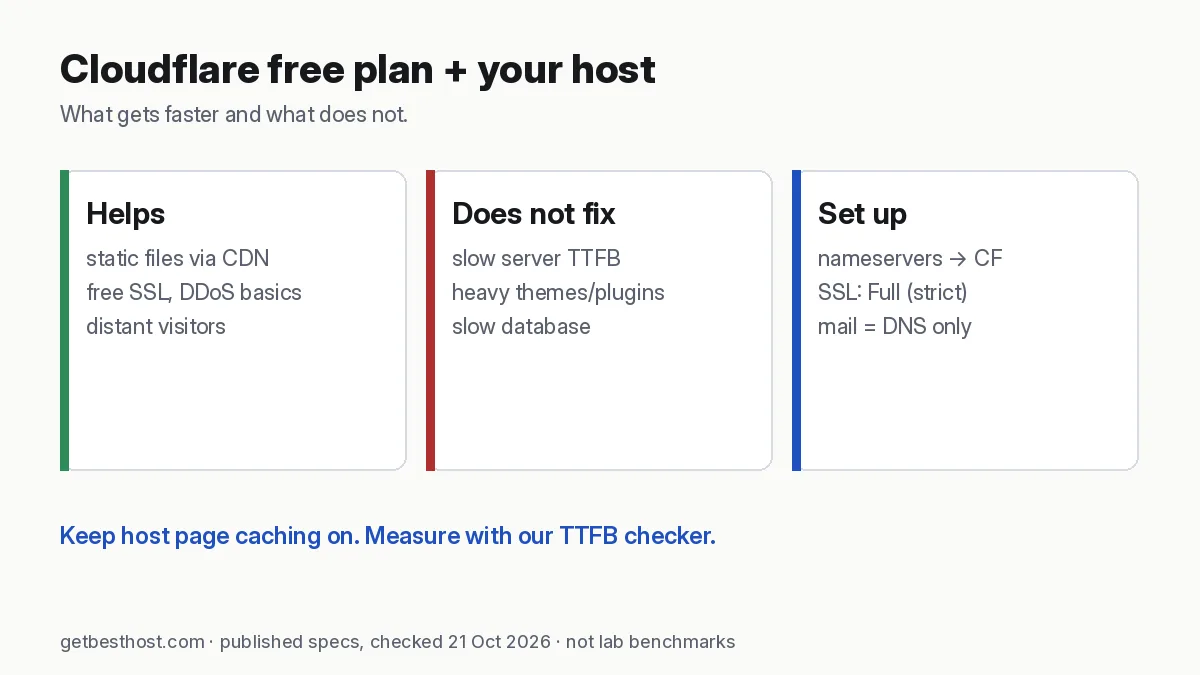
Quick answer: Yes, Cloudflare's free plan usually makes a hosted site faster for distant visitors. It caches static files (images, CSS, JS) at data centers near them, gives free SSL, and absorbs basic attacks. It does not fix a slow server response for dynamic pages (WordPress HTML is not cached by default), so slow TTFB still needs page caching on the host. Setup: add the site, switch your domain's nameservers to Cloudflare, set SSL to Full (strict), and keep your host's caching on.
What Cloudflare does (and doesn't do)
| Problem | Does Cloudflare's free plan help? |
|---|---|
| Images/CSS/JS slow for distant visitors | Yes: cached at nearby edge locations |
| No SSL certificate | Yes: free edge certificate |
| Basic bot floods and DDoS | Yes: always-on protection |
| Slow server response (high TTFB) on dynamic pages | Mostly no: HTML isn't cached by default |
| Heavy theme, too many plugins, slow database | No: fix the site (why your site is slow) |
| Wrong server region | Partly: static files improve; HTML still travels to the origin |
When it helps most
- Your server is far from your visitors, for example a US server with readers in Bangladesh. Static files then come from a nearby edge.
- Image-heavy pages, such as blogs, portfolios and stores.
- Traffic spikes: the cache absorbs repeat requests, so the host serves fewer.
It helps least when the site is already fast and close to its audience, or when most pages are personalised (logged-in WooCommerce accounts, dashboards).
15-minute setup with any host
- Create a free Cloudflare account and add your domain. Cloudflare scans and imports existing DNS records.
- Check the records: the
Arecord for your domain andwwwshould point to your host's IP. Keep mail records (MX) and mail hostnames "DNS only" (grey cloud). - Change nameservers at your registrar to the two Cloudflare nameservers shown. The switch can take a few hours to take effect.
- SSL/TLS → Full (strict). Make sure your host has a valid certificate. Most hosts issue a free Let's Encrypt one, or you can install a Cloudflare Origin certificate.
- Turn on "Always Use HTTPS", and keep your host's own HTTPS redirect from fighting it.
- Keep host-side caching on (LiteSpeed Cache, your host's cache, or a plugin) for fast HTML.
- Test: load pages, check forms and logins, and look for the
cf-cache-statusheader on images.
Settings worth knowing
- Caching level: Standard is fine. Purge the cache after big design changes.
- Development mode temporarily bypasses the cache while you edit CSS.
- Brotli/HTTP/3 are typically on by default. Leave them on.
- Cache rules: advanced users can cache HTML for anonymous visitors, but never cache carts, checkouts or logged-in pages.
- Bot fight mode can block legitimate tools. If your monitoring or payment webhooks break, check it first.
Common mistakes
- Flexible SSL mode → redirect loops ("too many redirects") and unencrypted traffic to your server. Use Full (strict).
- Proxying the mail hostname → email stops working. Mail records must be DNS only.
- Double CDN (host CDN plus Cloudflare) with conflicting cache rules → stale pages. Pick one primary.
- Forgetting the origin IP is public in old DNS history. If you're under attack, consider moving the origin IP.
Measure the difference
Run our TTFB checker on your site before and after switching, and our latency test from your visitors' city. For a real-world view, compare the PageSpeed Insights field data (Core Web Vitals) a few weeks later.
Choosing a host to pair with Cloudflare? See best WordPress hosting, hosting for Bangladesh and the find my host quiz.
Cloudflare for sites with Asian visitors
Cloudflare runs data centers in many Asian cities, including Dhaka, so cached static files can be served close to visitors in Bangladesh, India and Southeast Asia even if your origin server is in Singapore or the US. That helps images, CSS and JavaScript the most. The HTML of a WordPress page is not cached by default, so the origin location still matters for the first byte. Pair Cloudflare with an Asian origin (see hosting for Bangladesh) for the best results, and check the difference with our TTFB checker.
Caching HTML safely (optional)
If most pages are the same for every visitor (a blog, docs, a brochure site), you can cache HTML at the edge with a Cache Rule that bypasses logged-in users and carts: skip caching when the request has WordPress login cookies (wordpress_logged_in_*) or WooCommerce session cookies (woocommerce_*), and never cache /wp-admin/, /cart/, /checkout/ or /my-account/. Test in a private window after each change. If something looks stale, use "Purge Everything" and narrow the rule.
Security wins on the free plan
- Universal SSL for visitors, plus "Full (strict)" mode once your host has a valid certificate (most hosts include a free Let's Encrypt certificate).
- Basic DDoS protection and bot filtering in front of your server.
- WAF custom rules (a limited number on the free plan) to challenge traffic to
/wp-login.phpandxmlrpc.php. This cuts brute-force load on cheap shared hosting.
When Cloudflare will not fix it
If your server takes more than a second to build each page, because of a heavy theme, too many plugins or an overloaded shared server, a CDN only hides part of the problem. Fix the origin first: caching plugin, image sizes, PHP version, then plan size. See why your site is slow on good hosting and, if you have outgrown shared hosting, VPS vs shared hosting.